Tampilkan postingan dengan label ABout_Network. Tampilkan semua postingan
Tampilkan postingan dengan label ABout_Network. Tampilkan semua postingan
9.02.2014
Cara Membuat Read More di Blog Blogspot
Cara Membuat Read More di Blog Blogspot

Cara Membuat Read More di Blog Blogspot mungkin belum banyak yang mengetahuinya, untuk itu disini saya akan mencoba menjelaskan secara singkat Bagaimana Cara Membuat Read More di Blog Blogspot.
Tapi sebelumnya saya ingin memberitahukan bahwa Read More yang akan kita buat ini otomatis, maksudnya kita akan belajar Cara Membuat Read More secara otomatis menggunakan bantuan dari jump link yang ada di blogspot.
Dalam tutorial ini saya menggunakan Template Sederhana (standar) dari Blogger.
Baik, langsung saja kita mulai pembahasan cara membuat read more di blog blogspot.
Cara Membuat Read More di Blog
1. Masuk ke Template dan klik Edit Template
2. Klik CTRL + F, dan cari kode html
3. Letakan kode dibawah ini, tepat diatas kode html
4. Lanjut dan cari kode ini
5. Disini banyak blogger yang bingung, karena ada banyak sekali kode
6. Jika sudah tinggal Anda klik Save dan, silahkan lihat hasilnya. Jika cara membuat read more di blog Anda berhasil, maka hasilnya akan seperti gambar dibawah ini.

Kalau tampilan read more hanya berupa link, sepertinya kurang menarik bukan ? tapi jangan khawatir, kita bisa mengubah tampilan read more dengan bantuan css.
Cara Membuat Read More di Blog Lebih Menarik
1. Sama seperti langkah cara membuat read more diatas, yang pertama adalah buka Template lalu klik Edit
2. Klik CTRL + F dan ketikkan ]]>
3. Masukkan kode css dibawah ini tepat diatas ]]>.
.arrow {
font-size: 18px;
font-family: serif;
font-weight: 900;
}
.readmore-link {
margin-top: 20px;
border-bottom: 1px solid gainsboro;
margin-left: 250px;
}
font-size: 18px;
font-family: serif;
font-weight: 900;
}
.readmore-link {
margin-top: 20px;
border-bottom: 1px solid gainsboro;
margin-left: 250px;
}
4. Langkah terakhir tinggal anda klik save template.
5. Silahkan Anda cek tampilan read more anda yang baru, gimana ? tambah hancur bukan, haha.

Untuk informasi saja, bahwa sebenarnya kode javascript diatas bisa Anda ubah sesuai selera, misalnya kita ingin membuat thumbnail-nya lebih besar, katakanlah ingin dirubah menjadi 250px, caranya mudah tinggal Anda ganti img_thumb_height = 120; menjadi img_thumb_height = 250; dan img_thumb_width = 120; menjadi img_thumb_width = 250;
Mungkin itu saja penjelasan dari saya mengenai cara membuat read more di blog, jika ada hal yang ingin anda tanyakan seputar cara membuat read more di blog ini, jangan sungkan-sungkan untuk menanyakannya melalui kolom komentar dibawah, gratis pastinya.
Akhir kata saya ucapkan terimakasih banyak sudah bersedia meluangkan waktu Anda untuk membaca artikel Cara Membuat Read More di Blog Blogspot.
Source : http://berguruseo.blogspot.com

How To Use Mobile Phone as Webcam In PC

How To Use Mobile Phone As Webcam In Computers :
1. First of all,Download Smartcam Application for your Mobile.You can download the Smartcam Application on your phone by clicking below links.Download Smartcam For Android Phones
Smartcam For Windows Phones
Smartcam For Java Phones
Smartcam For S60 3rd edition Phones
Smartcam For S60 2nd Edition Phones
Smartcam For BlackBerry
2. Now download Smartcam application for your Computer or Laptop.You can download the Smartcam Application for your Computer or laptop by clicking below links.
Smartcam For Windows
Smartcam For Linux
3. Install Smartcam on both Mobile Phone and Computer.
4. Now connect your Mobile Phone with your Pc using Bluetooth or Wi-Fi and Enjoy Mobile Phone Camera on Pc/Laptop.
- Bluestacks Alternatives For Running Android Apps On PC
- How to Lock Whatsapp With Password
- How To Download Facebook Videos Easily
Now you can easily use your Mobile Phone camera as Computer Web Camera.You can also use your mobile phone camera as Web camera by using a application called Mobiola.But this application is not available for free in the Internet.So if you face any problem in using your Mobile phone camera as Computer Webcam then comment below or report us.If you like this tutorial then share it with your friends.
Source : http://adf.ly/rgQOa
5 Best Sites To Download Torrent Files With IDM
5 Best Sites To Download Torrent Files With IDM

Every internet user want to download torrent files with IDM because IDM gives then high downloading speed than all other torrent downloading software.So today I am sharing 5 best websites to download torrent files with IDM.These sites allow us to download torrent files directly with Internet download manager(IDM).But most these sites don't allow free members to download unlimited data with unlimited speed.
5 Ways To Download Torrent Files With IDM :
1. Zbigz :
Zbigz is a online Bittorrent client which allow you to download torrent files directly with Internet download manager.The free members of Zbigz are allowed to download file smaller than 1 GB at a time.So if you want to download torrent files larger than 1 GB then you should buy the premium membership of Zbigz.The download speed for free members is limited to 150 KBPS.You can increase your downloading speed and bandwidth by purchasing premium membership of Zbigz.You can download torrent files with Internet Download Manager using Zbigz by reading article How To Download Torrent Files With IDM Using Zbigz.2. Putdrive :
Putdrive is first online cloud downloader in the World.You can downloading the torrent files with IDM from Putdrive 100% anonymous that means your IP address and other details are remains unknown.In Putdrive,Free users can download torrent files with IDM without any speed limit.So if you want to download torrent files with internet download manager then visit www.putdrive.com.3. Boxopus :
Boxopus is another website to download torrent files directly with Internet download manager.It need no torrent client to download torrent files with download managers.After uploading .Torrent file or pasting magnet link,You can easily download your torrents with IDM or save torrent files in your Dropbox account for future downloads.It supports music and video streaming that means that you can easily watch your torrent videos online and listen music online.So if you want to download torrent files with IDM using Boxopus then visit www.Boxopus.com.How To Download Torrent Files With IDM Using Boxopus :
1. Visit www.Boxopus.com and sign in with your account.2. Now upload .Torrent file or paste magnet link and then click Upload button.
3. Wait until Boxopus server caches the torrent file and then download your torrent file with internet download manager.
4. TorrentHandler :
Torrenthandler is a website which allow us to download torrent files directly without using any BitTorrent Client.There is not speed limit for free users so that free members can downloading torrent files with IDM at high speed.You can download unlimited torrent files with IDM at a time using TorrentHandler.Sometimes the server takes very long time to caches torrent files so you can shut down your computer until caching completes and you'll receive a email from TorrentHandler.So if you want to download torrent files with IDM then visit www.torrenthandler.com.5. Filestream :
Filestream is also one of best website to download torrent files with IDM.But it not allow free members to download torrent files larger than 1 GB.So if you want to download torrent files with IDM using filestream then visit www.filestream.me.Now you can easily download all torrent files with Internet download manager or any other download manager.These all are best sites to download torrent files with IDM.So if you face any problem in downloading torrent files with IDM then comment below.If you like this article then share it with your friends.
Source : http://adf.ly/rgOO7
Download Whatsapp For Pc Without Using Bluestacks - Windows 8.1/8/7/XP

Whatsapp is a most popular messaging application in the World.It is available for Android,iPhone, Blackberry ,Window Phones and Nokia smartphones.Generally, It is not available for computers and laptops but you can use this messaging app on your computer having windows 8,windows 7 and windows XP by reading the methods given below.Last month,I share a article with you to How to run Whatsapp on computer with Bluestacks but our reader thought that Bluestacks required a minimum of 2 GB RAM and a good graphic card.So today I am sharing an article with you to How to use Whatsapp on your Pc having Windows 8.1,Windows 8,Windows 7,Windows XP and Windows Vista without using Bluestacks.
Method 1 : Install WhatsApp On PC Using Youwave Android Emulator :
Youwave is a powerful application to run android apps and games on your computers or laptops.You can also run the all android games and applications by using Bluestacks android emulator,But in order to install Bluestacks android emulator you need at least 2 GB of Ram and a graphic card.So if your computer's RAM is more than 2 GB then you can run Whatsapp on your PC by reading a article to install Whatsapp on PC.But if your computer's RAM is less than 2 GB then your can run Whatsapp in your computer or laptop by reading the steps given below.
1. Download and install Home version(10 day trail) of Youwave Android Emulator.
2. Open the trail version of Youwave in your computer or laptop.
3. Now click on View > Online Content and then click on Whatsapp in Online Apps.If you not find Whatsapp in Online content then you can look for it on app stores.
4. After downloading Whatsapp,Go to View > Apps and click on Whatsapp to run it on your computer or laptop.
5. Now click on Agree & Continue.
6. Select your Country and enter your Mobile Number as shown in image below.

7. If your mobile number verification is failed via SMS then click on Call Me button.

8. After clicking on Call Me button,You will receive a phone call on your mobile.Hear the verification code and enter it on your computer/laptop screen.
9. Now enter your name and you will successfully install Whatsapp on your PC.
In starting,Their are no contacts available in your Whatsapp account because you are not using the Whatsapp on your smartphone.But you can add the contacts on your Youwave Whatsapp account manually.
Method 2 : Run Whatsapp On Your Pc By Using Wassapp Client :

1. Download and install Wassapp Client on your computer/laptop by clicking here.
2. Open Wassapp Client in your Pc.
3. Now Log in on Wassapp Client with your Whatsapp account.If you not know about your Whatsapp account password then click on What is my password ?.
- How To Disable Or Hide Last Seen Time In WhatsApp For Android And iPhone
- How To Install WhatsApp On Android Tablet
Now you can easily use Whatsapp on your computer or laptop by using one of above methods.So if you face any problem in using Whatsapp on your Pc then comment below or contact us by visiting our Contact us page.If you found this article helpful then share it with your friends and other peoples.
Source : http://adf.ly/rgMDq
9.05.2013
3 Layanan Gratis Pencegah Copy Paste

Plagiarisme atau penjiplakan yang melanggar hak cipta sudah bukanlah hal yang aneh lagi. Di kalangan blogger dan netter kegiatan plagiarisme sering dikenal dengan Copas atau Copy Paste, bagi sebagian orang yang tidak suka kontennya dijiplak tanpa menyertakan link sumber aslinya mungkin ini akan sangat menjengkelkan.
Nah yang saya ingin bahas kali ini adalah layanan gratis dari pihak ketiga ™, beberapa diantaranya menyediakan layanan versi berbayar
1. Copyscape

Copyscape mempunyai fungsi yang hampir mirip seperti mesin pencari, ditampilan awal ada kolom untuk memasukkan link halaman yang akan di cek, apakah isi halaman tersebut sama dengan halaman pada web/blog lain, jika ada yang sama itu berarti kontenmu telah dijiplak, berikut ini contohnya:
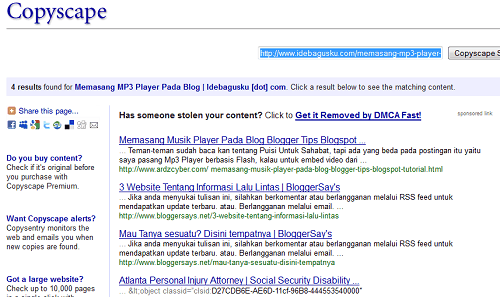
Silahkan kunjungi websitenya: http://www.copyscape.com
2. MyFreeCopyright

Cara kerja MyFreeCopyright yaitu setiap kita mempublish setiap artikel kita akan mendapatkan Digital Fingerprint atau Sidik Jari Digital yang terekam dalam database MyFreeCopyright dan akan dikirimkan melalui email, berikut ini contoh emailnya:
** DO NOT DELETE THIS EMAIL. THIS EMAIL IS IMPORTANT IN THE COPYRIGHT PROTECTION PROCESS. **
Gugun Gumilar’s Copyright:
****************
Copyright :: Attribution Non-commercial No Derivatives
Registered :: Mon Aug 15 00:45:53 UTC 2011
Title :: Komik Keren Buatan Indonesia
Category :: Blog
Fingerprint :: a698a35a1182196abe66dcb72171eb
68efda2c657a940363e8d436e0ed0a6678
MCN :: EWT6N-6C12F-1P4VY
Nah Digital Fingerprint bisa dijadikan bukti yang sah bila suatu saat konten kita dicuri, selain konten berupa artikel MyFreeCopyright juga menyediakan perlindungan untuk konten berupa file dan semuanya GRATIS.
Silahkan kunjungi websitenya: hhttp://myfreecopyright.com
3. Digital Millennium Copyright Act Services atau DMCA

Layanan DMCA merupakan layanan Professional untuk melindungi konten secara online, ada versi gratis ada juga yang berbayar. Jenis kontennya pun bermacam-macam seperti artikel, grafik/gambar, foto, aplikasi, game dan lainnya.
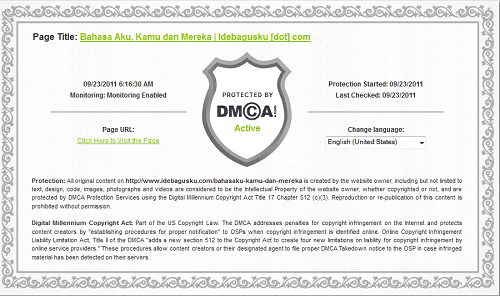
Yang menarik untuk versi gratisnya ada fitur Watermark yaitu setiap gambar yang kita upload ke blog akan mempunyai watermark secara otomatis, watermarknya bisa berupa author atau link tempat sumber gambar diambil.
Untuk versi berbayar ada sebuah fitur Takedown, fitur ini memungkinkan pemilik konten untuk menghapus konten yang telah dicuri dengan segera.
Tertarik untuk mencobanya? Silahkan lihat http://www.dmca.com
Source : http://belajarweb.net/
9 Layanan Short URL Gratis Terbaik untuk Memperpendek Alamat Website
Daftar 9 Layanan Short URL Gratis
- Goo.gl
Dari maraknya short url yang ada akhirnya google-pun meluncurkan short url yang teritegrasi dengan semua layanan google, misalnya seperti feedburner dll. - Bit.ly
Layanan Short url free dan premium terlepas dari layanan satu atap seperti Google short url dan Twitter short url. Layanan ini memberikan fasilitas short url gratis tanpa statistik dan layanan premium dengan memberikan detail statistik. - Tinyurl.com
Layanan yang satu ini kemungkinan sudah pada kenal karena sepertinya sebelum ada short url lainnya tinyurl ini telah memulai memberikan layanan penyingkat url hingga sekarang. - ow.ly
Layanan short url gratis ini sepertinya dari hootsuit yaitu salah satu penyedia layanan marketing tools yang salah satu toolsnya yaotu untuk manajemen dan memonitor akun social media. Layanan ini terintegrasi dengan applikasi hootsuit dan bisa anda manfaatkan secara gratis. - cli.gs
Layanan Short url gratis yang support custom link, yaitu anda bisa menentukan string yang terdapat pada short url anda. - notlong.com
Tidak seperti layanan short url gratis lainnya yang url nya memanjang kebelakang, Layanan Short URL gratis ini menggunakan subdomain sehingga short url anda akan menjadi url.notlong.com - is.gd
Sama sepertihalnya cli.gs, layanan short url ini juga menawarkan custom url dimana anda bisa menentukan string url anda. - snipurl.com
Layanan Short URL gratis ini memungkinkan anda mensubmit multiple url dalam sekali waktu dan otomatis di konversi dalam satu waktu. - adjix.com
Layanan short url gratis bebas advertising, tapi sepertinya ada sistem advertisingnya juga.
Source : http://belajarweb.net
5.25.2012
How to capture streaming videos from the Internet

How to capture streaming videos from the Internet

Many websites like YouTube use a Flash Video format that enables highly-compressed streaming video to effectively play in most browsers. However, the inconvenience with this type of format is that you will not be able to download it by using your Save Target option.
There are three common ways available to capture streaming videos online to your computer:
1. Use download-helper websites
2. Capture the video using a Firefox extension
3. Save the video using commercial software
Download-helper Websites
KeepVid and YouTube Downloader are download-helper websites that allow users to provide them with the video links. These videos will then be catalogued and uploaded to the site. They are not video hosting websites like YouTube or Dailymotion - they provide a browser-based service as the user only has to enter the video's URL in the field provided and choose its source from the list. The file formats can be converted into Mpeg video formats on Keepvid.Firefox extension
Mozilla Firefox is a web browser that allows you to grab online videos with its additional Video Downloader extension. This application runs both on Windows and Mac OS X operating systems.Firefox can be downloaded at http://www.mozilla.com/en-US/firefox/
Install Mozilla Firefox
- 1. Choose Save when the file download window opens and select the path you want the extension to be saved in.
- 2. When the download is completed, click Open.
- 3. This will launch the Set Up Wizard and you will be free to make all the necessary changes concerning its installation. If you do not want to make any changes to the installation settings, check the box labeled "I agree to the terms and conditions of the program" and proceed by clicking Next until installation completes.
Install Mozilla Firefox Video Downloader
When Firefox's installation is complete, you can download the Video Downloader extension at https://addons.mozilla.org/en-US/firefox/addon/3006
- 1. When prompted to download the software extension, click Save.
- 2. Save the add-on in the "Extensions" folder that is within the Firefox folder in your Program Files.
- 3. When the download is complete, click "Close".
- 4. When you will open the Mozilla Firefox browser window, it will ask you if you want to install the add-on. Click "Install Now".
- 5. After installation, the toolbar should have the icon located to the left-hand side of your address bar.
- 6. You should first load the page containing the video stream to use this option. Once you have loaded the right page, click on the down arrow next to your video downloader icon and choose the format you want to save the video. By default it will save it as an FLV format file.
- 7. Choose where to save the video.
Note: Winamp's latest versions can play FLV format files. You can download the program at: http://www.winamp.com/player
Commercial softwares
There is commercial software available online that require installation. They can be used to download the streaming videos to your computer. Some have the option to convert your FLV format files into Mpeg or AVI files.CamStudio
Download Link: http://camstudio.org/
Type: Free
Replay AV
Download Link: http://www.applian.com/replay-av/
Type: Trial version
WM Recorder
Download Link: http://www.wmrecorder.com/
Type: Trial version
Info
If you regularly watch videos on YouTube, the easiest way to download videos from this website is using of Real player:- Download and install a free version of Real player
- A folder named Real Player downloads will be automatically created in /My Documents/Video
- Launch a video on Youtube
- A small option should be present at the top of the video saying "Download Video"
- Click on it and the video will be saved on your hard drive
Sumber : http://en.kioskea.net/faq/140-how-to-capture-streaming-videos-from-the-internet
3.18.2012
Live Chat or Chatbox or ShoutBox
ChatBox atau sering juga di sebut live chat adalah salah satu tools dengan menggunan HTML or CSS dll yang sering digunakan untuk memberi saran atau juga meminta sesorang untuk berkunjung ke alamat blog atau web tertentu, bahkan sampai penyisipan layanan Ecomers dan lebih kejam lagi sampai di sisipkan trojan yang dapat membahayakan. Banyak sekali web-web yang menyediakan layanan ChatBox ini, dan syaratnya juga tidak terlalu sulit atau bisa di bilang mudah Alias tinggal Register....udah kodingnya sudah bisa anda kopi sesuai dengan frame ChatBox yang anda sukai. Dan sudah di lengkapi dengan berbagai macam Smiles yang pokoknya serui abisssssssss....Dan banyak sekali yang menyediakan layanan ChatBox ini tinggal di serching di paman google aja dan tinggal pilih sesuai kebutuhan.
 |
Oke Guys kali ini aku mau install salah satu ChatBox dari www.shoutcamp.com kebetulan aku belim memiliki Account di layanan ini sehinga aku harus meregisternya terlebih dahulu.......
Oke biar lebih jelasnya dan lengkap ni aku kasih EBOOKnya disini DOWNLOAD
7.26.2010
Mengendalikan komputer dari jarak jauh Via Internet

Pada kesmpatan ini salah satu Aplikasi yang saya gunakan dari : https://secure.logmein.com/ yaitu logmein yang trial Versi. Sebelumnya anda harus register dulu apablia belum memiliki Account di logmein. Setelah register anda tinggal baca perintah lanjuta untuk mulai dari share aplikas, desktop, bahkan chating serta juga ini jug abisa di gunakan di Warnet.
11.11.2008
Aplikasi Chating
BinG http://www.bing.im
E-buddy http://www.ebuddy.com
Reporo http://www.reporo.com
Slick http://www.lonelycatgames.com/?app=slick
Talkonaut http://www.talkonaut.com
Yeigo http://www.yeigo.com
YehBA http://www.yehba.com
Ymtiny http://orisinil.com/ymtiny
Fring http://www.fring.com
Morange http://www.morange.com
Nimbuzz http://www.nimbuzz.com
Papaya http://www.papayamobile.com
Langganan:
Postingan
(
Atom
)